Loading…
USE CASESBarbershops

Your chair. Their turn. Less waiting around.

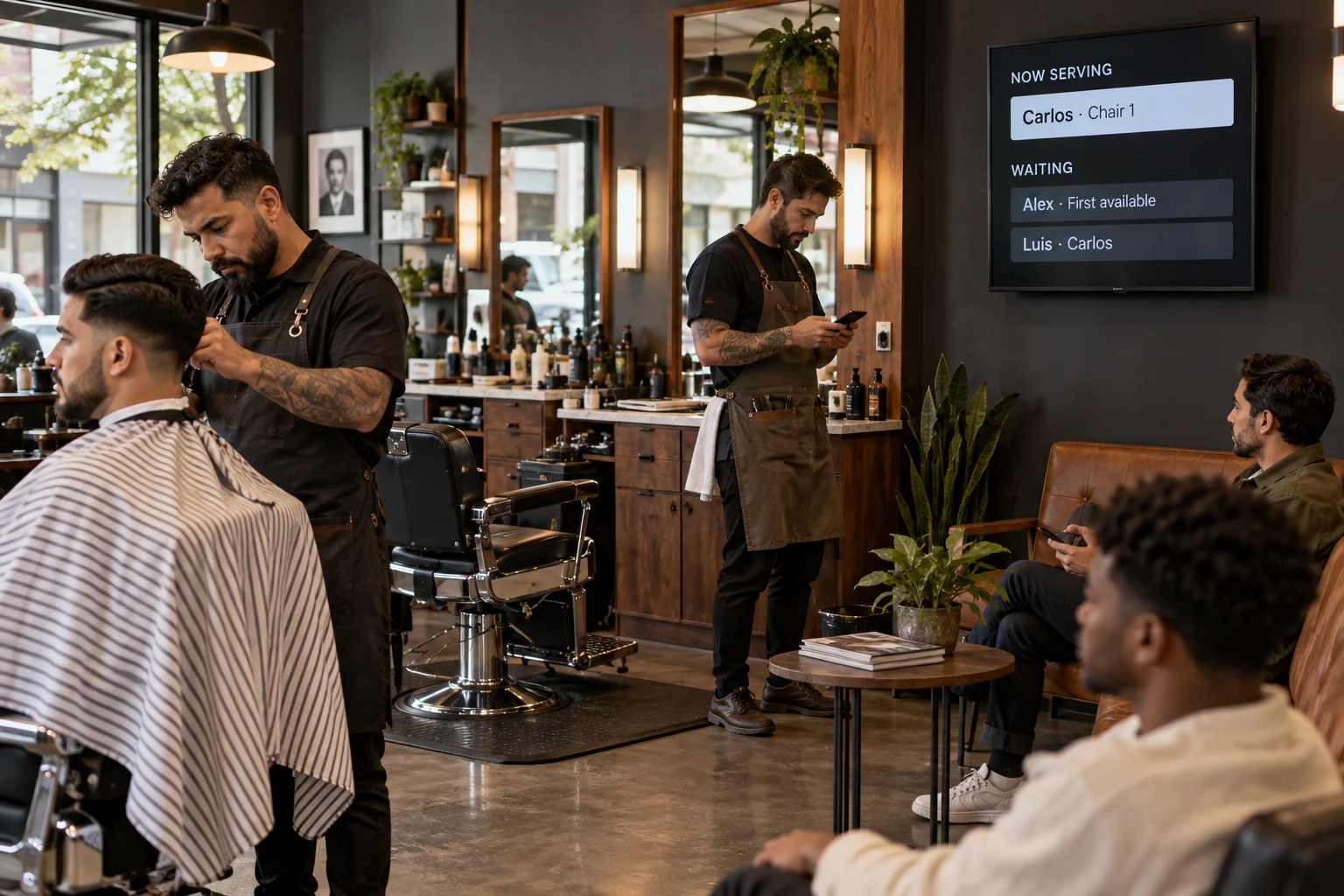
Keep walk-ins organized with the Customer Queue widget. Add each barber, let customers request their favorite or choose First available, and show the live queue on your shop screen. Each barber can use the staff page on their phone to call and manage customers.

Your photos. Your message. Your screens.

A barber checking his phone beside a station in a modern barbershop with a digital customer queue screen.
A clear queue. A personal choice.
Make it your ownStart with a template or a blank canvas.
Keep it currentEdit your content, then publish the update.
Give every screen a roleUse different designs for different spaces.
A FEW IDEAS TO GET YOU STARTED

What could go on your screens?

Start with what your visitors already want to know. Then add a little personality.

Their favorite barber—or first available

Create a staff entry for each barber. At check-in, customers enter their name and select a specific barber from the dropdown, or leave First available selected. Temporarily hide unavailable barbers from that list without revoking their devices.
Manage the next customer from a phone

Pair each barber’s phone using their staff activation code. From the mobile staff page, they can see waiting customers and requested barbers, call a customer, and mark the service complete. Choose whether staff may call any eligible customer or only the next in line.

Make your waiting area useful

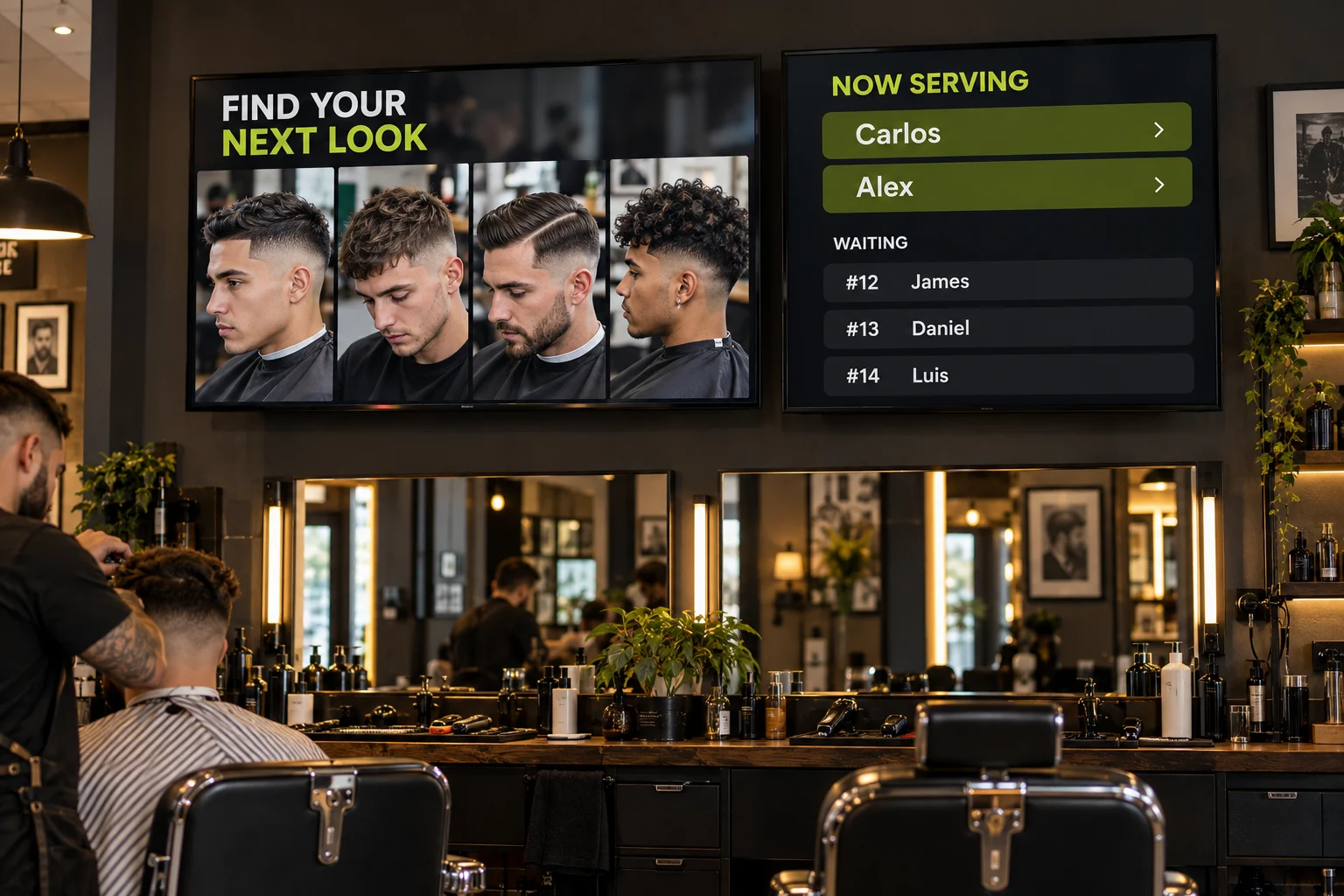
Show who is being served and who is waiting. Add a QR Code widget linking to check-in so customers can join from their own phones. Use slideshows and videos to showcase hairstyles and cuts your barbers have created, from before-and-after transformations to your latest work. Help customers find inspiration for their next look, alongside service prices, promotions and announcements.

Two screens inside a barbershop: a portfolio of finished haircuts beside the customer waiting list.
Show your best work. Keep every turn in view.
FITS THE WAY YOU WORK

Set up the shop once. Keep the day moving.

Create your location’s queue in Queue Manager, add the barbers and pair their phones. Add the Customer Queue widget to your screen design, then publish. Customers check in, select a barber or First available, and follow their turn on screen. Barbers call and complete services from their phones. Daily reports can show the customer, serving barber, waiting time and service time, with date-range filtering and Excel export.

See what the software can do
FROM IDEA TO SCREEN

You bring the content.
We give it a place.

The Online Design Studio is included in every plan. You can keep it simple and add more as you go.

  1. Pick a starting pointChoose a free ready-to-use template or start with a blank design.
  2. Add what makes it yoursBring your photos, video, colors, and text into the Design Studio.
  3. Publish to your screenConnect a supported screen or player, activate it in your account, and publish your design.
A COUPLE OF GOOD QUESTIONS

Before you get started.

Have something specific in mind? Tell us about it.

Ask us a question
Do barbers need a separate app on their phones?

The staff tools open in the phone’s browser after device pairing; no separate barber app is required. Live check-in, queue updates and staff actions need an internet connection. The queue organizes walk-ins and barber preferences; it is not an appointment-booking calendar.

Do I need design experience?

No. Start with a ready-to-use template and change the text and pictures. If you would rather have someone create the design for you, ask about our menu design service.

What do I need to show the design?

You need a compatible TV or display setup running the Interactive Menus app, plus an account. Visit the app page to check the available platforms, or contact us before choosing a player. See the apps →

YOUR NEXT SCREEN STARTS HERE

Let’s put your ideas on screen.

One screen or several locations. Start with what you need today.

Explore the plans