Make the wait feel more welcoming
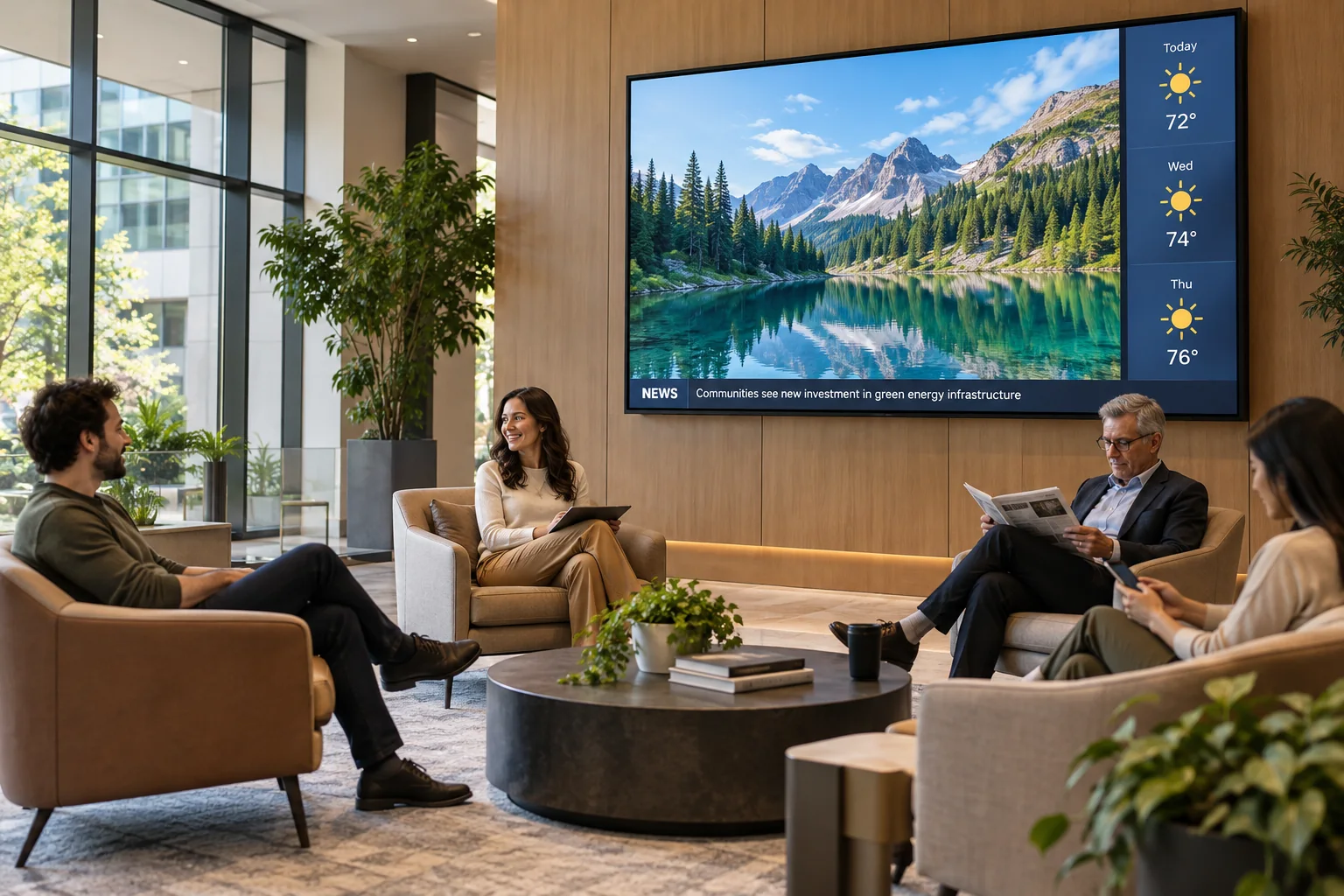
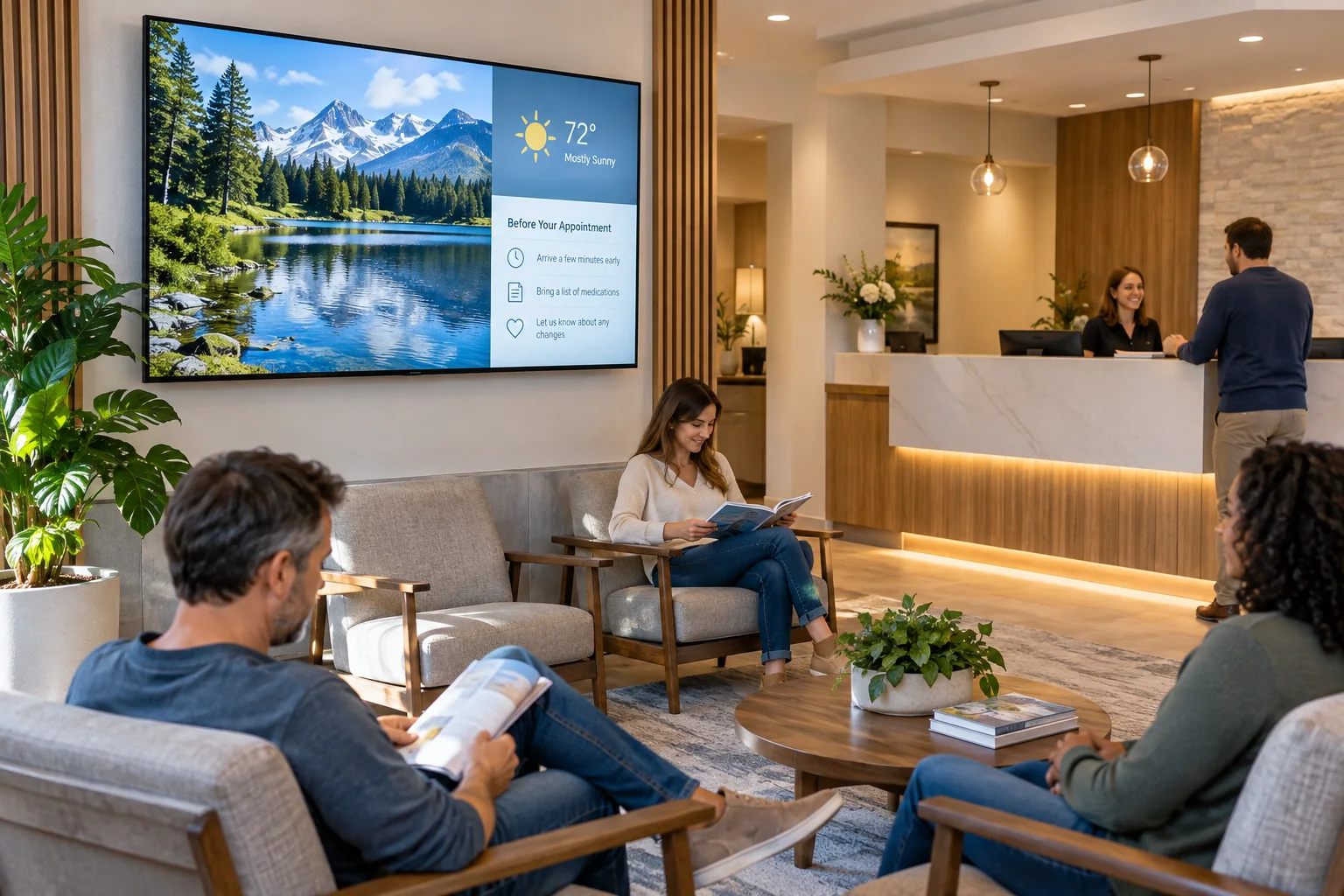
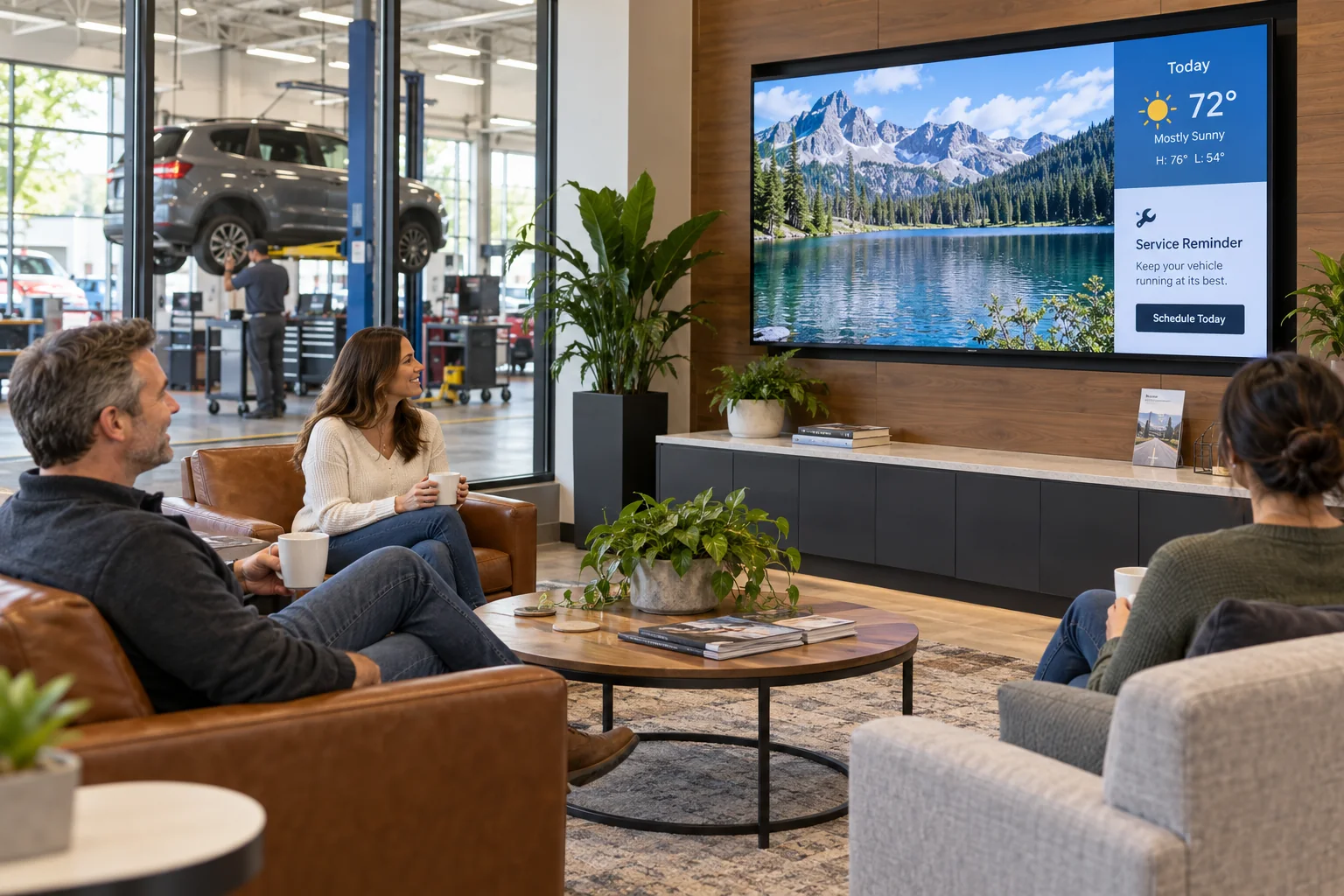
Mix relaxing video, weather, news, and a friendly welcome in the customer lounge. Add Wi-Fi details, opening hours, and a reminder about where to speak with a service advisor.
A service visit has two sides: customers waiting for their vehicles, and technicians keeping the day moving. Give each space its own screen, with the information that makes sense for the people in it.
Your photos. Your message. Your screens.
Start with what your visitors already want to know. Then add a little personality.
Mix relaxing video, weather, news, and a friendly welcome in the customer lounge. Add Wi-Fi details, opening hours, and a reminder about where to speak with a service advisor.
Use short videos and clear slides to explain tire care, seasonal maintenance, or an available service package. Feature your own team and photos so the message feels like your dealership.
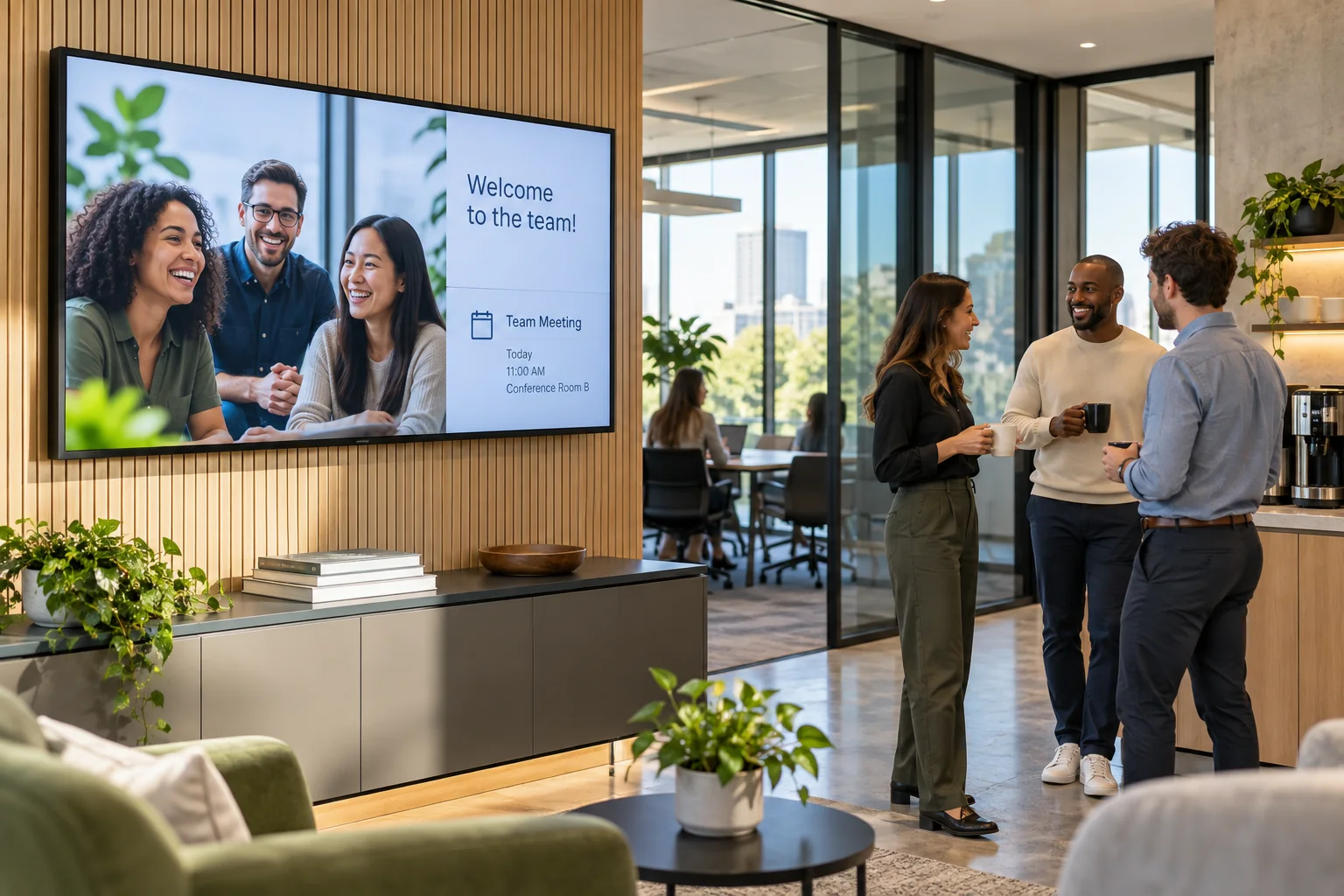
Put team announcements, training dates, safety reminders, and the day’s priorities on a screen near the workshop or break area. Enter the information you want to share and update it when plans change.
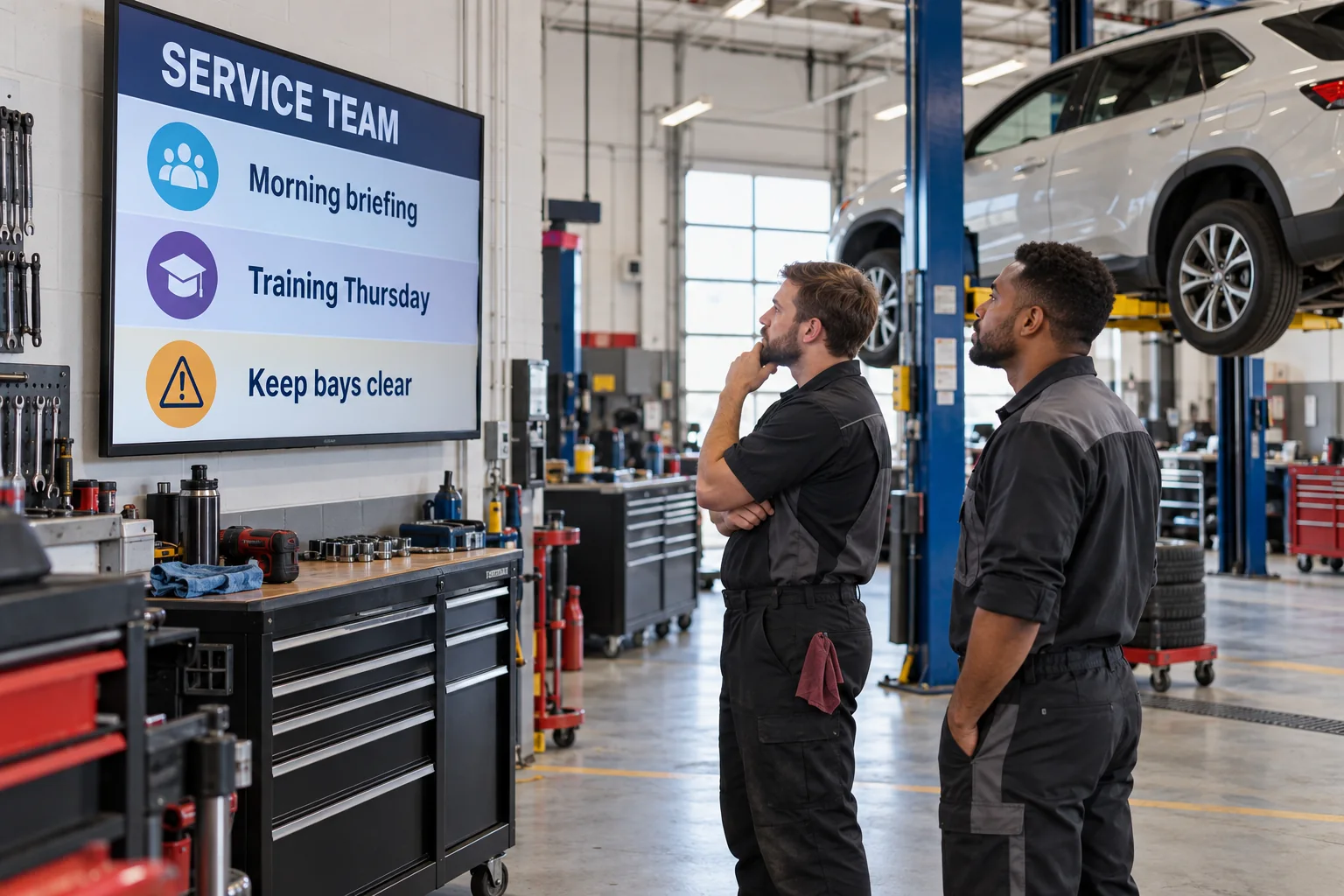
The lounge screen can tell customers about your services while giving them something enjoyable to watch. The workshop screen can stay focused on staff notices and practical reminders. Create a separate design for each, then publish changes from the same account. Your team board uses the content you add in the Design Studio, so you can get started without connecting a dealership management system.
See what the software can doThe Online Design Studio is included in every plan. You can keep it simple and add more as you go.
Have something specific in mind? Tell us about it.
Ask us a questionYes. Give each screen its own design: customer-friendly content in the lounge and team information in the workshop. You manage both from your account. Each screen uses its own screen license.
No. Start with a ready-to-use template and change the text and pictures. If you would rather have someone create the design for you, ask about our menu design service.
You need a compatible TV or display setup running the Interactive Menus app, plus an account. Visit the app page to check the available platforms, or contact us before choosing a player. See the apps →
One screen or several locations. Start with what you need today.